


How to create resume in Word isn’t just a document in today’s highly competitive job market. It’s your brand, pitch, and chance to land that dream interview. And guess what? You don’t need expensive software or fancy tools to make one that stands out. With Microsoft Word, innovative strategies, and the proper guidance, you can create a professional, eye-catching resume from your laptop.
Whether you’re a college student, a recent graduate, or a professional looking for a change, this guide will take you through everything you need. You’ll find formatting tips, downloadable templates, and advice on writing strong content that beats the bots (ATS) and catches the attention of real recruiters.
So if you’ve ever stared at a blinking cursor, unsure where to start, you’re in the right place. Let’s turn that blank page into your breakthrough.
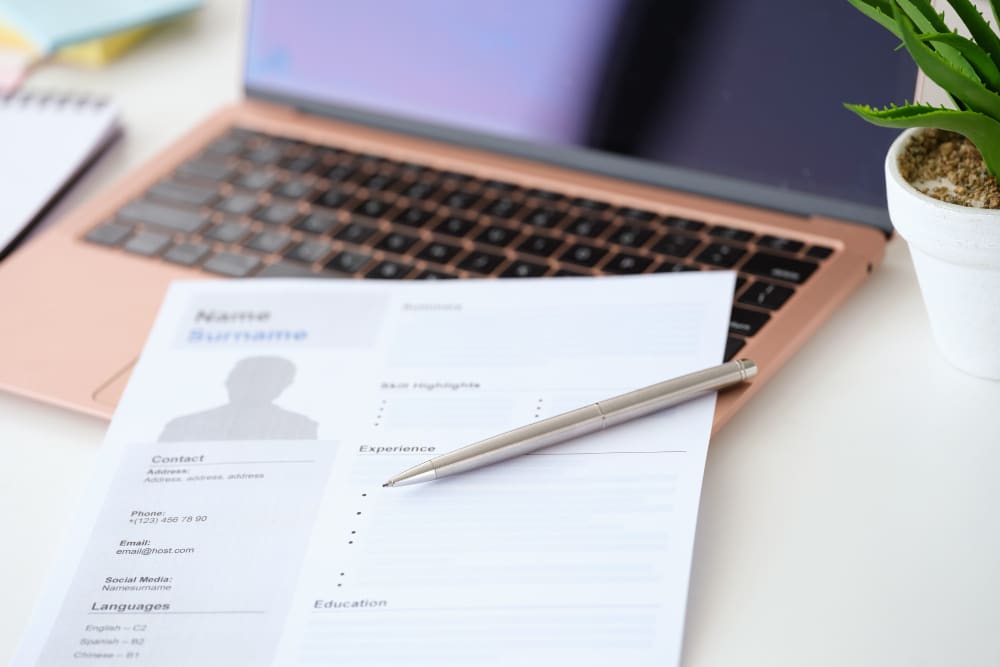
MS Word is a user-friendly tool that streamlines the resume creation process. Before diving into how to create a resume in MS Word, let’s explore why it’s a relevant choice:
Word offers a diverse range of pre-designed resume templates. These templates provide a polished layout, making it easier to present your qualifications professionally.
Word allows you to personalise templates. You can adjust layouts, fonts, and colours to match your style or job requirements.
Employers and recruiters commonly prefer Word documents, making them a trusted choice for job seekers. Word’s intuitive interface allows even beginners to create resumes easily.
MS Word includes features like spell check and formatting tools that help maintain professionalism and ensure error-free content.
Step 1: Open Microsoft Word
Step 2: Choose a Resume Template
Step 3: Enter Your Contact Information
Step 4: Write a Summary or Objective Statement
Step 5: Add Key Resume Sections
Customize the following standard sections to fit your experience:
Step 6: Format the Resume Professionally
Step 7: Avoid Complex Formatting
Avoid using the following elements, as they can confuse Applicant Tracking Systems (ATS):
Step 8: Save Your Resume
Step 9: Test with an ATS Simulator (Optional)
Your LinkedIn profile is an extension of your resume. Place it right below your email and phone number:
Beyond structure and formatting, the words you choose matter a lot. Here’s how to write resume bullets that catch attention:
Bonus Tip: Tailor each resume for every job you apply to. A one-size-fits-all approach doesn’t work in today’s competitive job market.
To simplify your resume-building process, we have gathered a collection of Microsoft Word resume templates specially made for various career stages and industries. Each template is ATS-compatible, fully editable, and designed for a clear and compelling presentation.
Choose Your Ideal Format:
Although our guide on creating a resume in Word is convenient in grabbing employers’ attention, if you want to excel in your chances of getting a job, customise it for each application. Here are some key tips for resume format customisation:
If your resume exceeds one page, reduce the margins. To adjust, open Word, navigate to “Layout,” click “Margins,” and select “Narrow” or “Custom Margins.”
Tip: Margins should be between 0.5” and 1” for a polished look.
Modify the spacing to fit more content. Use “Line and Paragraph Spacing” under the “Home” tab and choose “Line Spacing Options.” Adjust the spacing under “Before” and “After.”
For better structure, use horizontal lines to separate sections. Press “Shift + Hyphen” for an underscore, or use the “Borders” tool under “Home.”
Additionally, personalise your resume by incorporating keywords from the job description. Avoid generic phrases, focusing instead on job-relevant skills and expertise. A simple, concise format ensures readability.

Adding a professional headshot to your resume can improve your brand in some countries and creative fields. We’ve included templates that have clean, passport-style photo slots.
When to Use:
Caution:
Avoid photo resumes in markets like the US, UK, or Canada. This can lead to biased concerns or automatic rejection by ATS.
Over 90% of companies use ATS software to filter resumes. Make sure yours stands out by following these essentials:
| Checklist Item | Why It’s Important |
|---|---|
| Use .docx or PDF format | Stick to standard section titles. |
| Stick to standard section titles | Use labels like “Work Experience,” “Skills,” and “Education” without any creative wording. |
| Avoid tables, columns, and icons | ATS systems have trouble with non-linear formats. |
| Use plain bullet points | This helps systems understand your content correctly. |
| Integrate keywords naturally | Match the job description language without overloading with keywords. |
| Avoid headers and footers | Some ATS tools can’t read these sections. |
| Check with ATS simulators | Tools like Jobscan can help confirm if your resume is ready for ATS. |
| Save using a clear filename | For example: John_Doe_Resume_Marketing.docx. |
How to create a resume in Word effectively requires attention to detail. Here are common mistakes to avoid to keep your resume professional:
Keep content concise and relevant to the job position. Remove outdated experiences and irrelevant details. Focus on achievements directly related to your target role.
Avoid decorative or informal fonts. Use professional fonts in sizes no smaller than 10pt. Use a consistent font style for optimal readability.
Save your resume as a PDF to ensure a polished presentation and consistent device formatting. Confirm that all elements render correctly on various platforms.
Creating a standout resume in Word doesn’t have to be overwhelming. You can craft an impressive document that catches recruiters’ attention with the right template and formatting choices. Keep your resume clean, organized, and focused on relevant formatting across different devices. Regular updates, proofreading, and saving in multiple formats maintain your resume’s professional appearance.
Whether at the beginning of your career or looking for a new direction, following these steps to create a resume in Word is vital. A well-crafted resume that matches your qualifications and experience can enhance your job search. Remember, your resume isn’t just a document; it’s your ultimate pass to your career success.
Also, read cover letter vs resume.
Crafting your resume in Microsoft Word doesn’t have to be difficult. With the right templates, clear formatting, ATS-friendly practices, and strong writing, you can turn a blank page into a document that gets results. Whether you’re a recent graduate just starting or an experienced professional looking to move up, your resume is your first impression. Make it count.
Use the free Word templates, follow our formatting and content tips, and customize each section to showcase your unique strengths. Remember, a great resume isn’t just about being seen; it’s about making the shortlist.
Ready to stand out? Start building your future. Download your resume template, apply these tips, and land that interview.

Open Microsoft Word.
Select ‘File’, then ‘New’.
Choose ‘Resume’ or ‘Curriculum Vitae’ template.
Click on the template you prefer and select ‘Create’.
Replace placeholder text with your information (name, contact details, education, work experience, skills).
Format text as needed (font size, style, headings).
Add bullet points for clarity.
Save your CV by selecting ‘File’, then ‘Save As’.
Choose the location, name your file, and select ‘Save’.
Choose a clear layout with consistent formatting.
Include your contact information at the top (name, phone number, email, LinkedIn).
Write a personal statement or objective summarising your career goals.
List your work experience in reverse chronological order (job title, company, dates, responsibilities).
Include your education (degree, institution, dates).
Add relevant skills (both technical and soft skills).
Include any certifications or professional memberships.
Add volunteer work or relevant projects if applicable.
Tailor your resume for each job application with keywords from the job description.
Proofread for spelling and grammar errors.
The best resume format in Word is reverse-chronological. This format lists your work experience and education in reverse order, starting with the most recent. Use clear headings, a professional font, and bullet points for readability. Please keep it to one or two pages, tailored to the job you are applying for.
Yes, Microsoft Word includes a resume builder feature. You can find it under File > New and search for Resumes to access various templates.
Open Microsoft Word.
Click on File and select New.
Search for Resume in the template search bar.
Choose a template you like and click Create.
Replace the placeholder text with your information:
– Contact details
– Objective or summary
– Work experience
– Education
– Skills
Format the text as needed.
Save your resume by clicking File, then Save As, and choose a location.
Yes, Microsoft Word has a built-in resume template feature that allows you to create a resume. You can access it by selecting New and then searching for Resume in the template section.
To format a resume well, use a professional font such as Arial or Helvetica in 10 12- point size. Set 1-inch margins and use single-line spacing. Make section headings stand out by using bold or larger font sizes, such as Contact Information, Work Experience, and Education. Present your information clearly with bullet points, especially for your experience and skills. Quantify your achievements whenever you can.